
How to Free Up Phone Storage: A Simple Step-by-Step Guide
BY: DA PUBLISHED: 2026-11-26 20:47:36 | UPDATED: 2026-11-26 15:45:03 | Views: 44
Phone storage full? Learn how to check what is using space, clear apps, photos and downloads safely, and keep your phone running smoothly with simple steps.

Few things are more frustrating than seeing a "storage almost full" message just as you try to take a photo, install an update or save an important file. The good news is that most phones fill up for a handful of predictable reasons, and each one has a simple fix.
This guide walks you through a safe order: check, back up, clear, move and prevent. The steps apply to most Android phones and iPhones. Menu names differ between brands and software versions, so use the wording as a guide rather than an exact script.
Key takeaways
- Start by checking which categories use the most space, so you do not waste time on small things.
- Back up photos and files you care about before deleting anything.
- Photos, videos, chat media and unused apps are the most common space users.
- Clear an app's cache, not its data, unless you are happy to sign in and set it up again.
- A quick monthly check keeps the problem from returning.
Step 1: See what is using your storage
Open your phone's Settings and look for a section called Storage. On an iPhone, it is usually found under General, then iPhone Storage. You will see a bar or list showing how much space is used by apps, photos, videos, audio, system files and other items.
Take a minute to note the top three or four items. Most of the time, one or two categories account for the bulk of the space. Focus your effort there first.
If "System" or "Other" looks large, do not worry. It includes the operating system and temporary files, and you cannot safely delete it by hand. A restart and a software update sometimes tidy it up.
Step 2: Back up what matters first
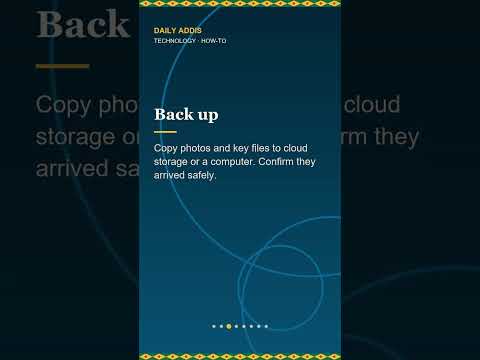
Before you delete anything, make sure your photos, videos and important documents are copied somewhere else. This could be a cloud storage service, your computer or an external drive. A backup means a mistaken tap will not cost you precious memories.
Wait until you can confirm the files appear in the backup location. Open a few of them on another device or on the web page of your storage service to be sure.
Step 3: Remove unused apps and clear caches
Scroll through your app list and ask a simple question for each one: have I used this in the last few months? If not, uninstall it. You can always download it again later.
Some other helpful actions:
- Offload apps (iPhone): this removes the app but keeps its documents and data, so you can reinstall without losing your settings.
- Clear cache (Android): open the app's info page, choose Storage, then tap Clear cache. Cache is temporary data the app can rebuild.
- Avoid "Clear data" by mistake: this resets the app, and you may lose saved settings or need to sign in again.
- Check downloaded content: music, video, podcast and offline map apps often store large files. Remove what you no longer use.
Step 4: Tidy photos and videos
Videos are usually the biggest space users, followed by photos. Open your gallery and sort through it in short sessions rather than all at once.
Video 1 of 1
- Delete blurry shots, accidental photos and near-duplicates.
- Remove old screenshots you no longer need.
- Look for long videos and decide which ones to keep, then move those to your computer or cloud storage.
- Empty the "Recently deleted" or "Trash" folder. Deleted items often stay there for a while and still take up space.
If you use a cloud photo service, check how it handles deletions. Some services mirror your phone, so deleting a photo on the phone may also remove it online. Read the service's own instructions before you delete anything.
You can also reduce future use by checking your camera settings. Recording video at a lower resolution creates smaller files, which is handy if you do not need the highest quality.
Step 5: Clean up chat media and downloads
Messaging apps often save every photo, video, voice note and document you receive. Over months, this adds up quickly, especially in busy group chats.
- Open the app's settings and look for a storage or data section. Many apps let you review large files by chat and delete them.
- Turn off automatic saving of received media to your gallery if you do not need it.
- Open your Downloads folder and delete old installers, PDFs and documents you have already used.
Where to move your files
Once your files are safe, you can choose where they live. Each option has its own strengths.
| Option | Best for | Things to remember |
|---|---|---|
| Cloud storage | Automatic backup and access from any device | Needs an internet connection and may have a storage limit or fee |
| Computer | Large photo and video collections | Connect by cable or a trusted transfer method, and keep a second copy if possible |
| Memory card | Extra space on phones that support it | Not all phones have a card slot, and cards can fail, so keep backups |
| External drive | Long-term archive of family photos | Store it safely and check it now and then |
Keep your storage free for the long term
A little regular care is easier than a big clean-up. Try these habits:
- Set a monthly reminder to check your storage and delete obvious clutter.
- Install software updates when your phone has enough free space, since updates need room to download.
- Be careful with "cleaner" or "booster" apps. Built-in storage tools are usually enough, and some third-party apps show many ads or ask for broad permissions.
- Download new apps only when you need them, and remove ones you try once and forget.
- Stream music and video when you can, rather than saving everything for offline use.
Frequently Asked Questions
Why is my storage full when I have not installed anything new?
Apps grow over time as they save cache, downloads and messages. Photos and videos also build up quietly. Checking the Storage screen will show which category has grown.
Is it safe to delete cache files?
Yes, clearing an app's cache is generally safe, because the app rebuilds it when needed. The app may open a little more slowly the first time. Avoid clearing data unless you want to reset the app.
Will deleting photos from my phone remove them from cloud storage?
It depends on the service and its settings. Some keep a synced copy that mirrors your phone, so a deletion can appear online too. Check the service's help pages and confirm your backup before deleting.
Does restarting my phone free up space?
A restart can clear some temporary files, but it will not remove large photos, videos or apps. Think of it as a small extra step, not a full solution.
Final thoughts
Freeing up phone storage does not need special tools. Check what takes the most space, back up what matters, clear what you no longer need and build a simple monthly habit. Your phone will feel more spacious, and you will be ready for the next photo, update or app.
You May Also Like
How Artificial Intelligence is Changing the World
4 months agoQuantum AI Just Made a Godlike Discovery!
6 months agoLatest Videos
Stop Buying Apartments Blindly: 3 Hidden...
Jul 08, 2026Super Girl Movie 2026 is finally here!
Jul 05, 2026Ethiopian Kitfo
Jul 05, 2026Related Articles

How to Make Your Phone Battery Last Long...
1 week ago
How to Set Up Two-Factor Authentication:...
3 weeks ago